Canvas Canopy
Canvas Canopy
About Canvas Canopy
🌿 Canvas Canopy: Design Your Dream Garden (Early Access Beta)
Paint your paradise with blocks, water and your own custom trees!
Join our open beta - help shape the garden with you as we grow. No downloads. No paywalls. Just pure creative gardening in your browser - play now for free.
🧊 Build Your Sanctuary, Block by Block
Stack modular cubes to craft winding paths, tiered terraces, or floating islands. Add flowing ponds, waterfalls, and custom water features — your vision, your rules.
🌳 Plant Trees Like a Pro (Even Make Your Own)
Choose from unique trees or create your own tree. Upload a drawing of a leaf and this will instantly become a custom tree in your garden.
💾 Save & Return Anytime
- No logins, no cloud - just open the game and your paradise is waiting. Gardens are saved to the browser you are accessing the game from.
- Autosave - forget to save your garden? Gardens are automatically saved as 'autosave' as you build.
Help
Overview
This help covers the different screens in the game and how to interact with and view your garden
🌳 Garden Screen
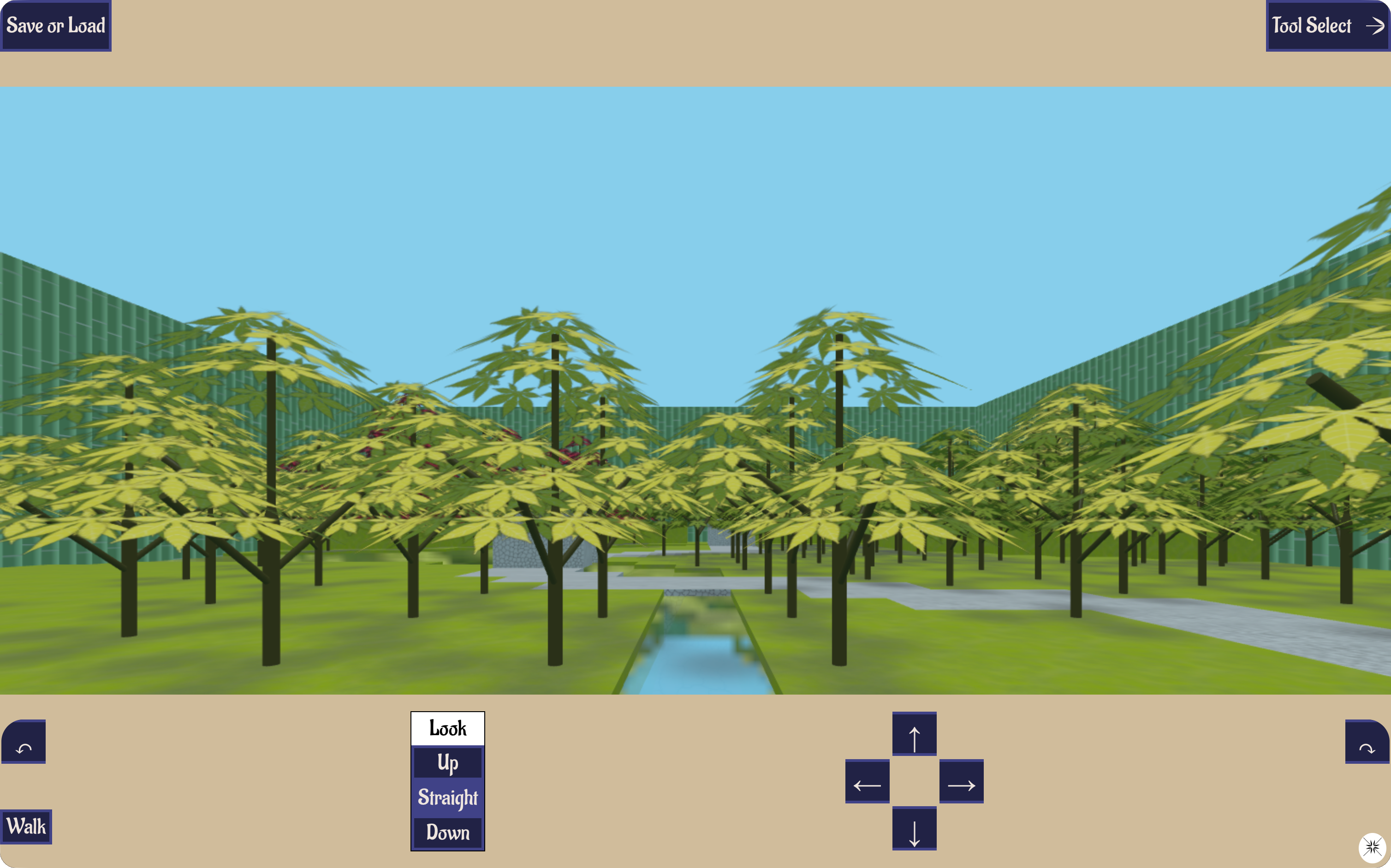
When a new garden is created, you will land on the Garden Screen. Here you can view and move around your garden either by pressing the buttons at the bottom of the screen or by using your keyboard as follows:
Keys to press to move around the garden:
- q rotates the view anti-clockwise
- e rotates the view clockwise
- w moves you forward
- a moves you left
- s moves you back
- d moves you right
Keys to press to look up/down:
- r causes you to look up
- c causes you to look down
- f causes you to look straight
Click the Tool Select button in the top right to move to the next screen
🔧 Tool Select
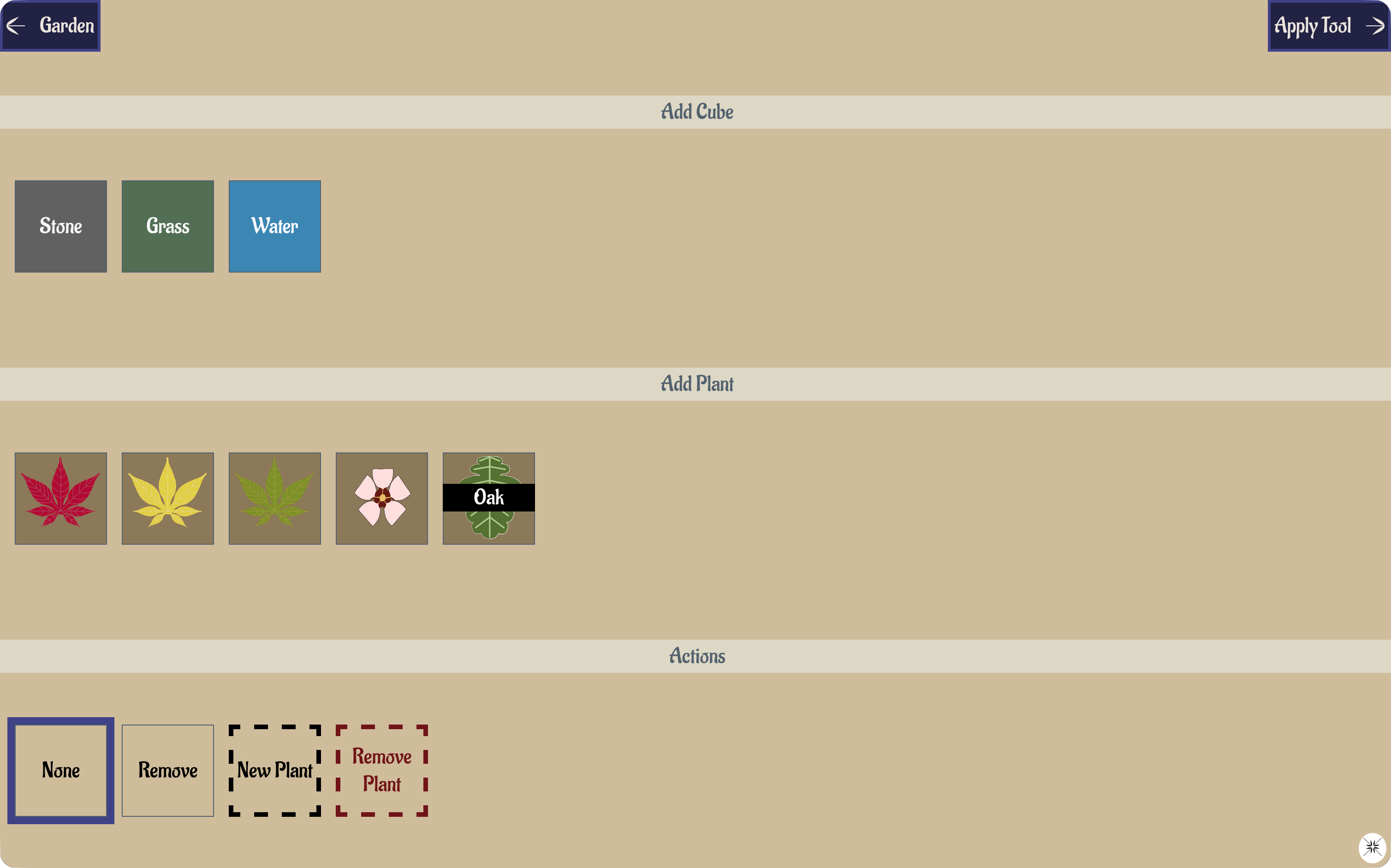
Here you choose what to add to the garden. Alternatively, if you click Remove you can delete things that have been added to the garden.
Click the Apply Tool button in the top right to move to the next screen
🗺️ Apply Tool
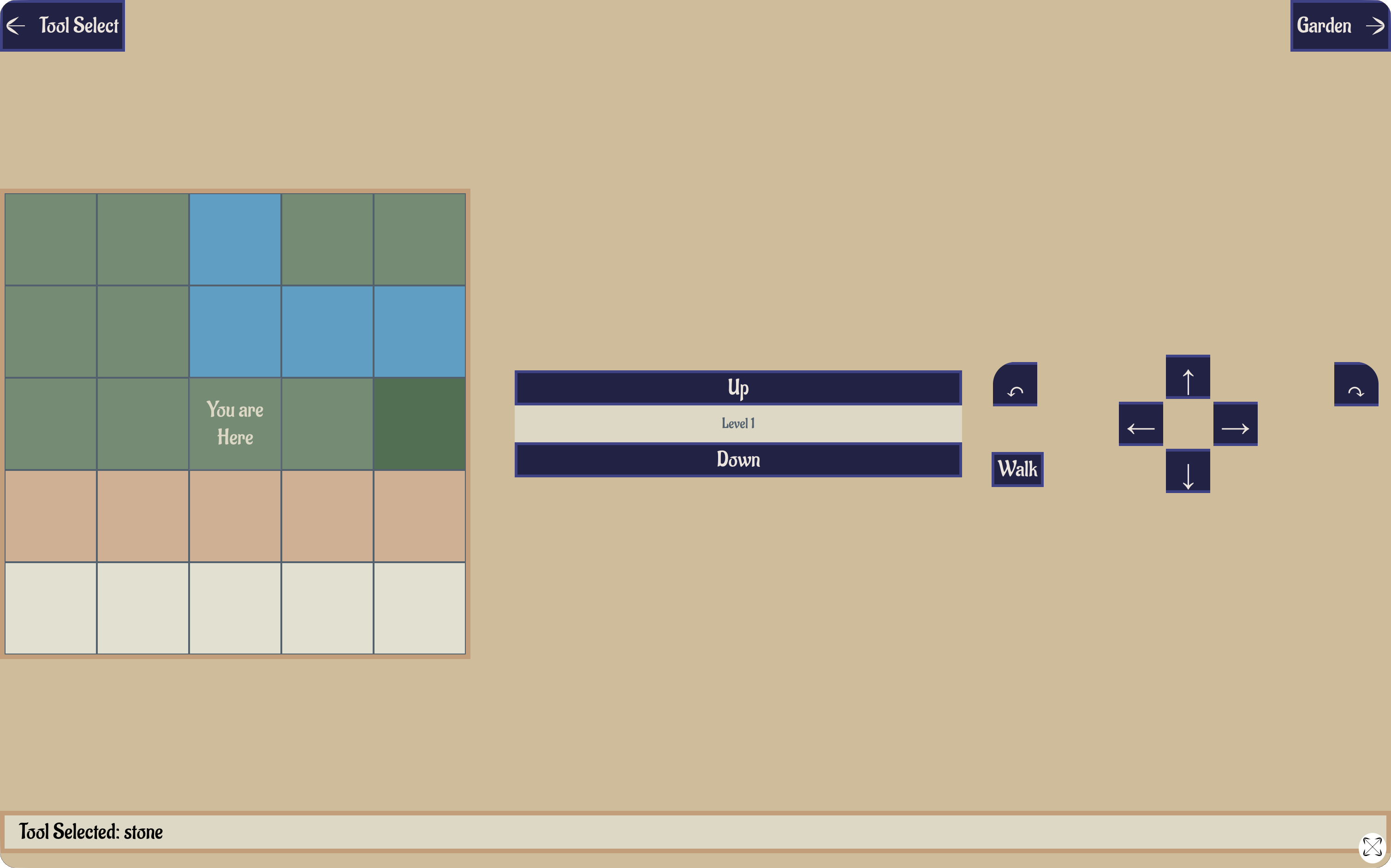
The map shows the nearby content in a grid. Click on a cell to apply the tool to that cell. Movement is the same as in the garden except that you can change the level at which you are applying the tool by clicking Up to go up one level and Down to go down a level. If you see a red x in a cell this means that you cannot apply the tool to that cell.
Click the Garden button in the top right to see the garden with the changes implemented or Tool Select to go back and change the tool that you are using
💾 Saving and Loading Gardens
In the Garden screen click Save or Load in the top left to either save your garden or load a previously saved garden
Type your garden's name and click save to save your garden
Alternatively click Overwrite next to the garden you wish to overwrite
🖌️ Creating a New Plant
Select New Plant in the Tool Select Screen, then click Upload Image. The image must be in PNG format and all white pixels (colour hex code #FFFFFF) will be ignored in the image. Type a name for your new plant and click save to add the plant to your collection.
If you wish to remove a plant you have added click Remove Plant in the Tool Select Screen and then click on the added plant icon to remove the plant.